How to use Glass Effect in Figma

The Glass effect (Glassmorphism) in Figma is a design style that simulates glass material characterized by transparency, light refraction, and spatial depth. This effect gives the impression that interface components are made of glass or crystal, subtly and modernly standing out against the background.
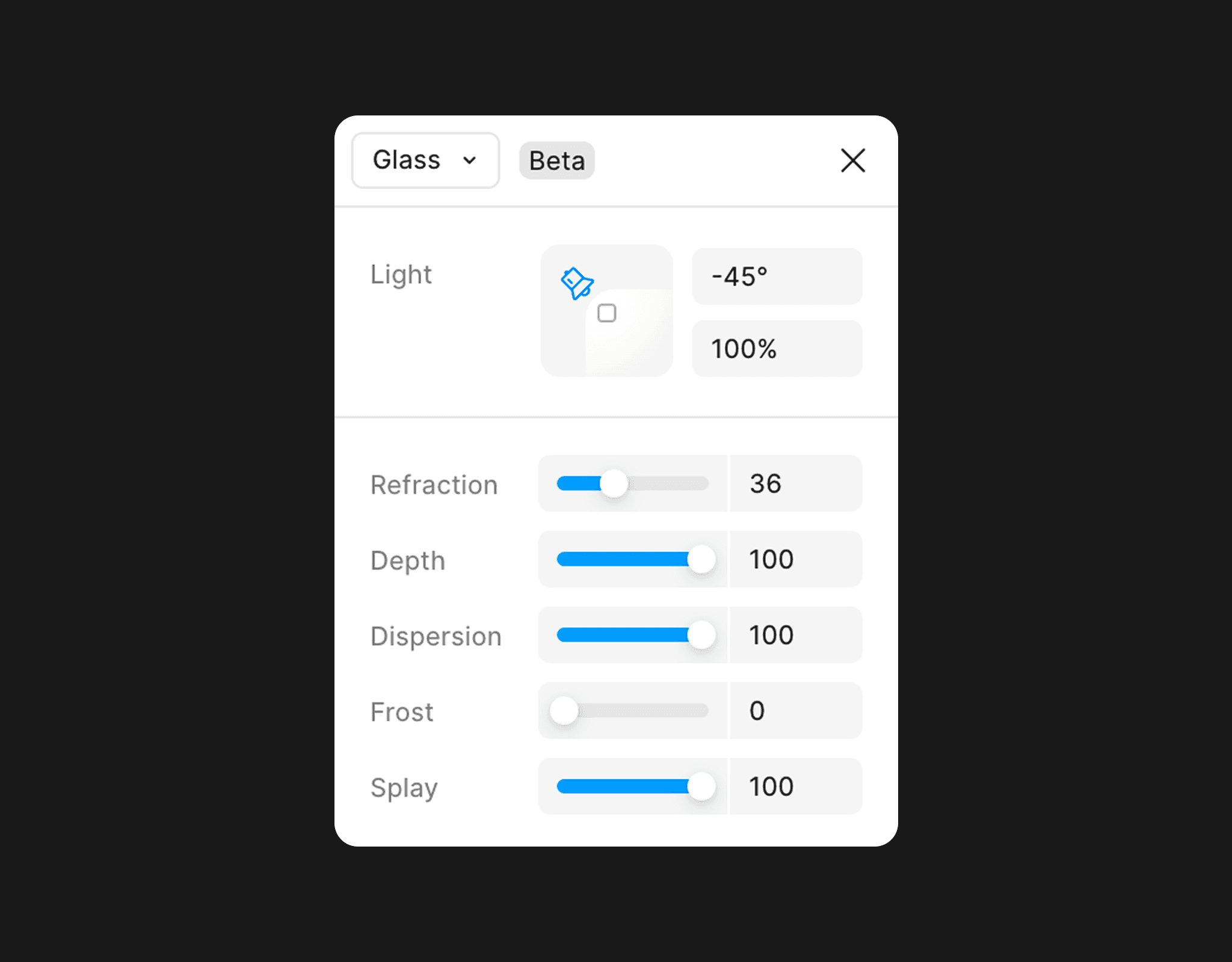
Thanks to parameters like refraction, depth, dispersion, and frost, Glass is not just about blurring the background but also recreates how light passes through materials in the real world. This makes the interface lively, premium, and suitable for products following future design trends like dashboards, cards, modals, or creative applications.
In this article, I will detail the parameters of this Glass effect through illustrative examples to help you understand and apply it in your designs.
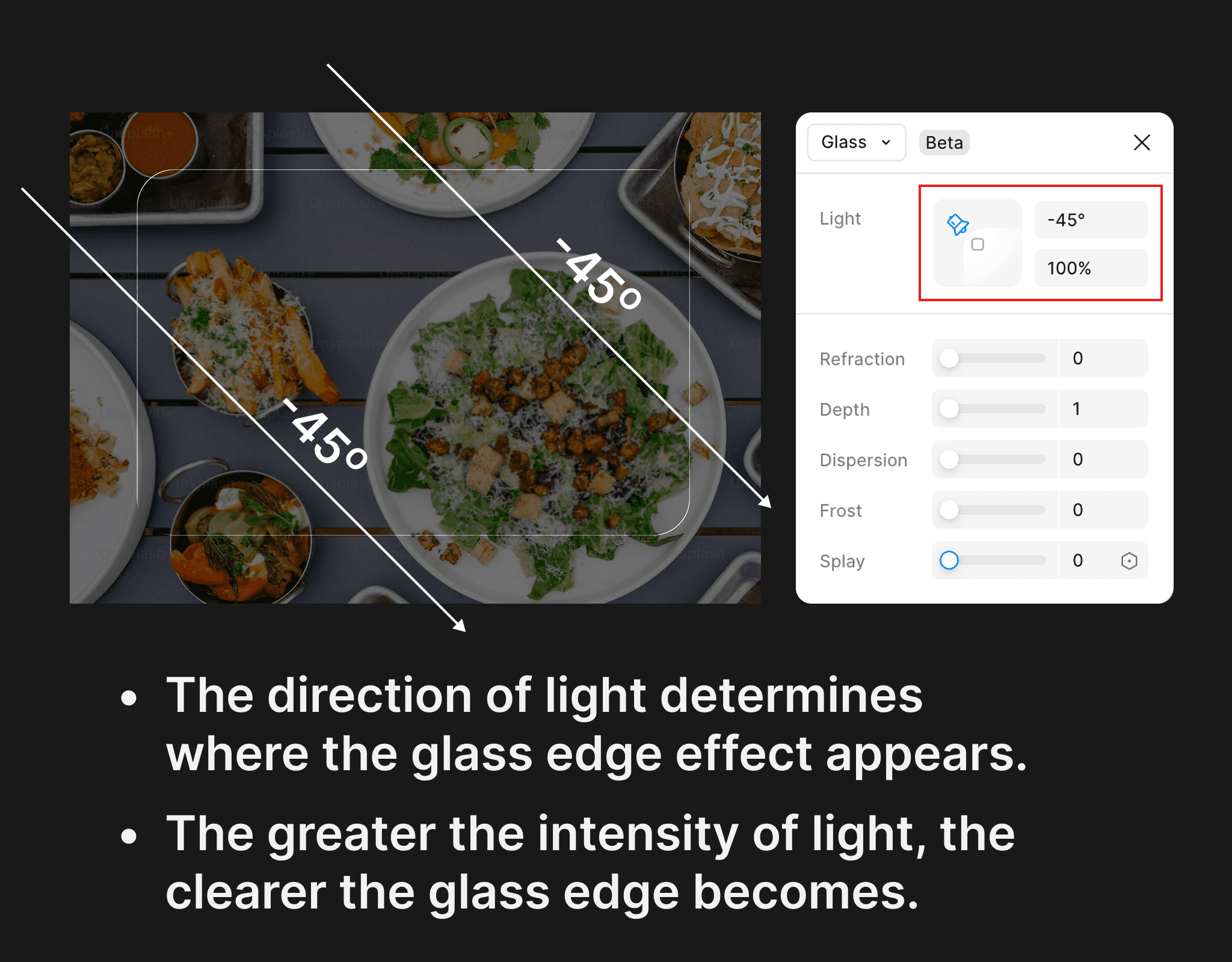
First, I will explain the parameter "Light"; when I adjust the light angle to -45 degrees, the glass border effect becomes clearly visible at the top left and bottom right of the shape. At the same time, I set the light intensity to 100%, making the glass border display clearly; you can also lower this parameter to make the glass border more blurred.
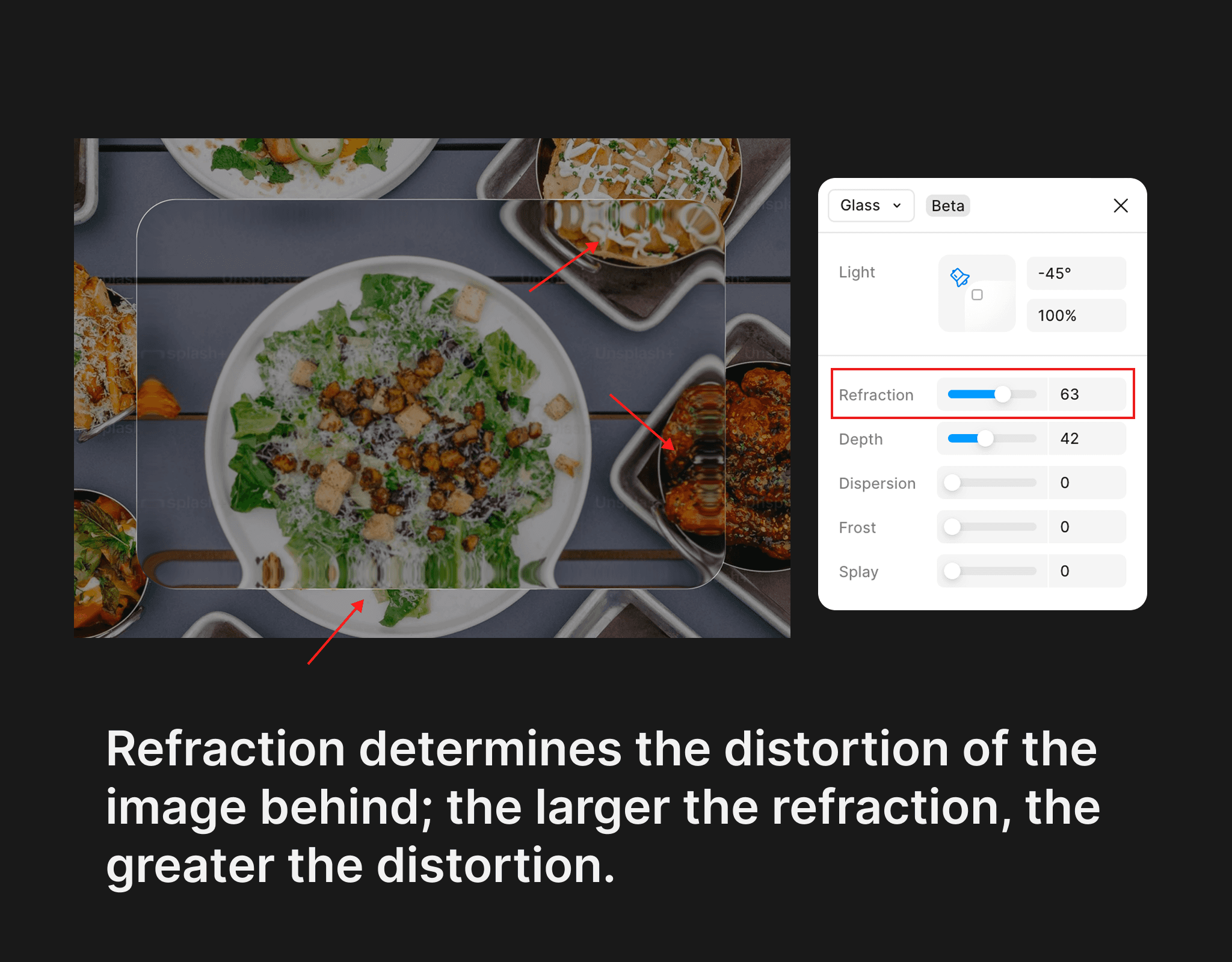
Next, I will explain the parameter "Refraction"; this parameter determines the distortion of the image behind the shape. As you can see, when I increase the refraction to 63, the food image beneath the shape becomes distorted; the larger this parameter, the more distortion occurs. Note that this parameter only works when you have set a certain "Depth" parameter; if you set "Depth" to "1", the "Refraction" parameter will not work, and the distortion effect will not appear.
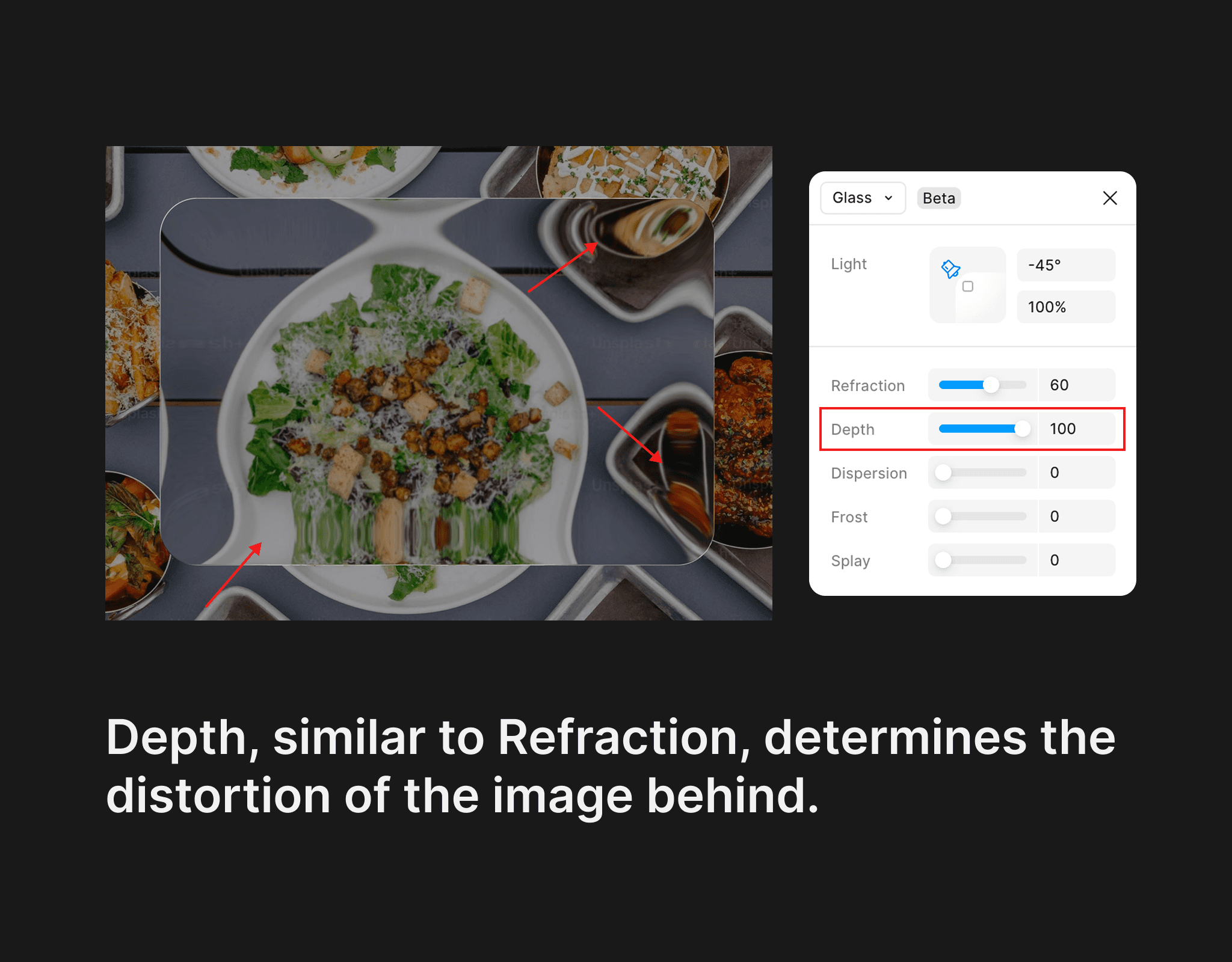
The "Depth" parameter simulates the thickness of the glass; this parameter is similar to the "Refraction" parameter; the larger it is, the more distortion occurs beneath.
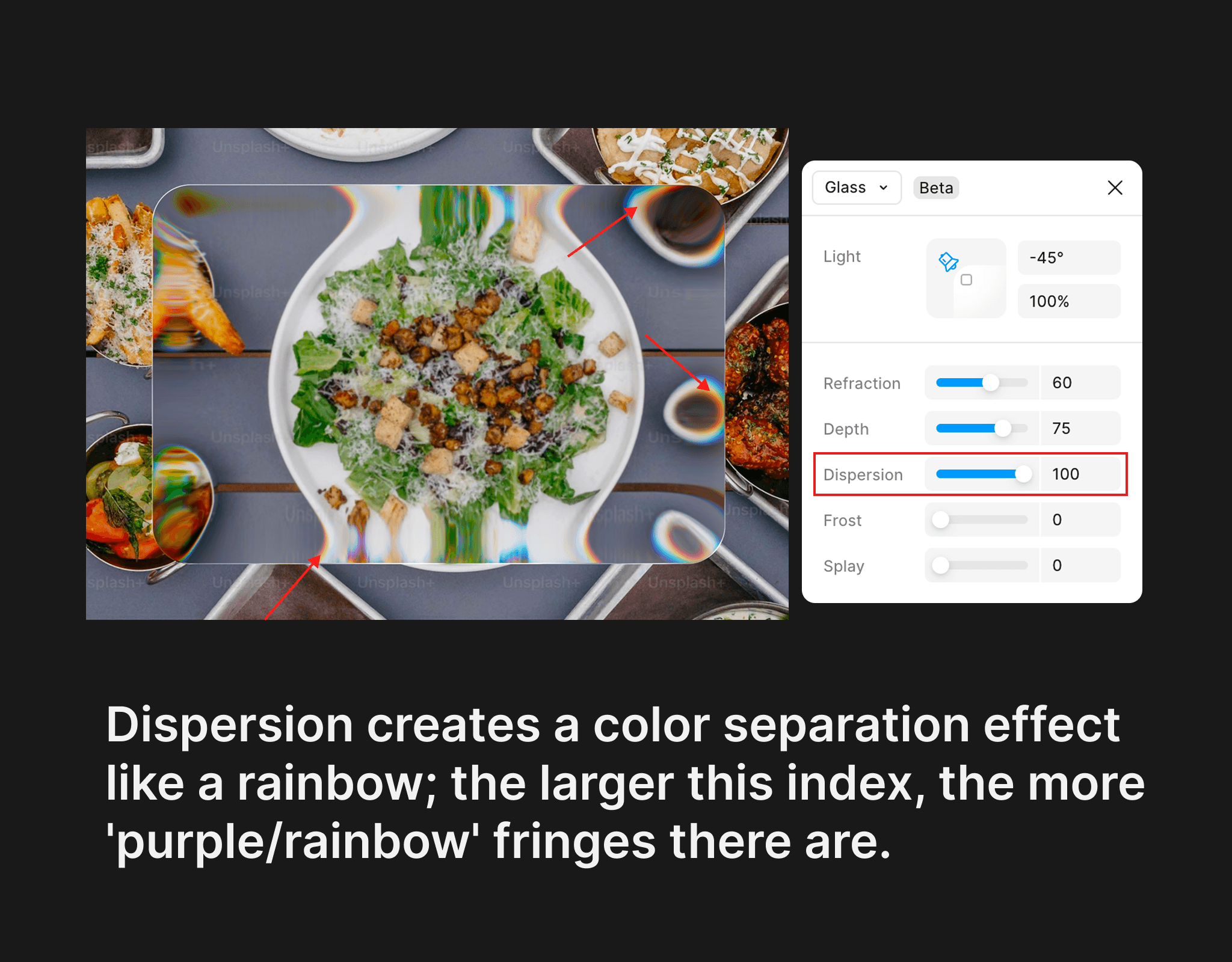
The "Dispersion" parameter creates colors similar to a rainbow, as shown in the image; the larger this parameter, the more pronounced the "purple/rainbow" effect becomes.
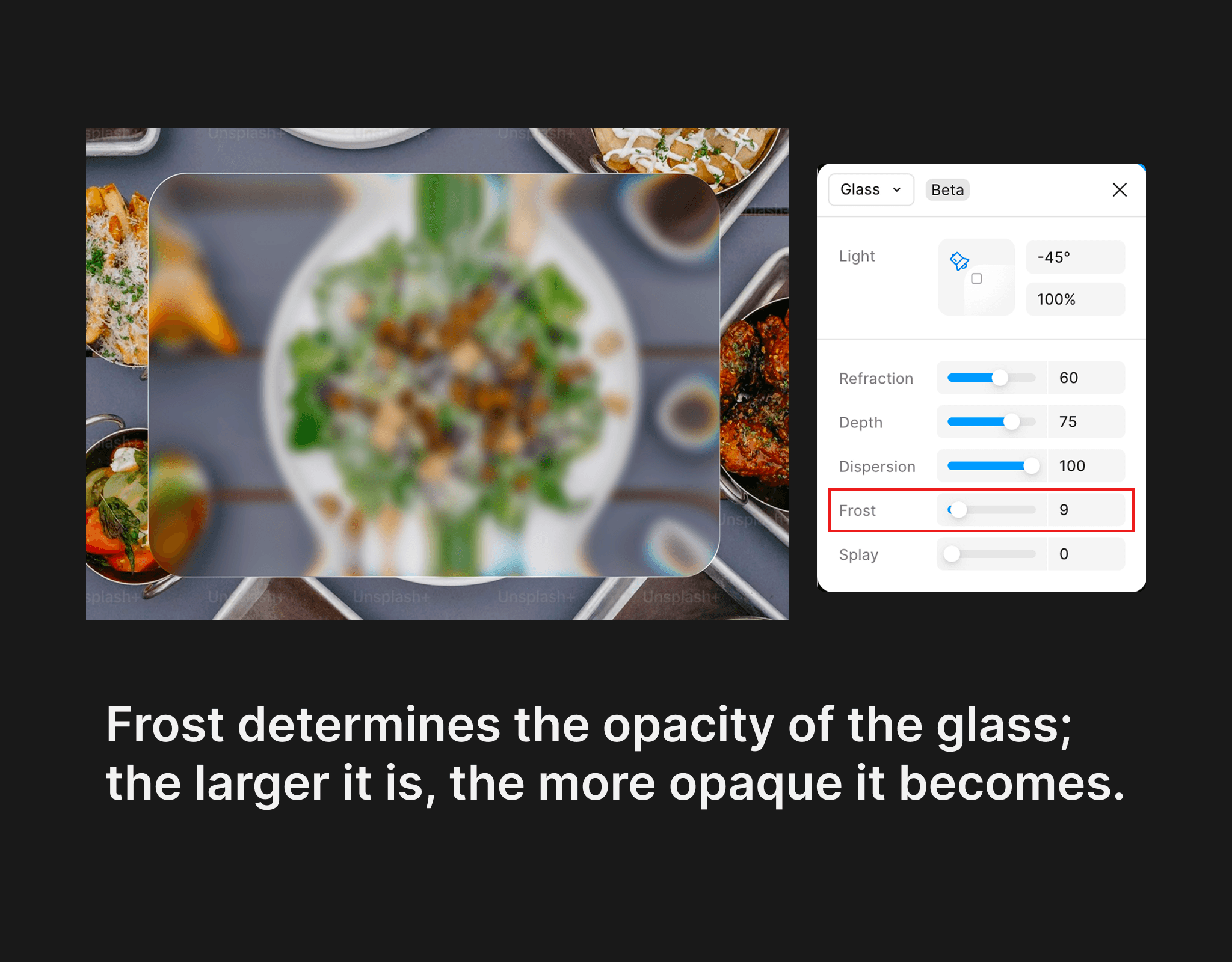
The "Frost" parameter adds opacity to the shape, resembling frosted glass; the larger this parameter, the harder it is to see the shape, and the image behind becomes significantly blurred.
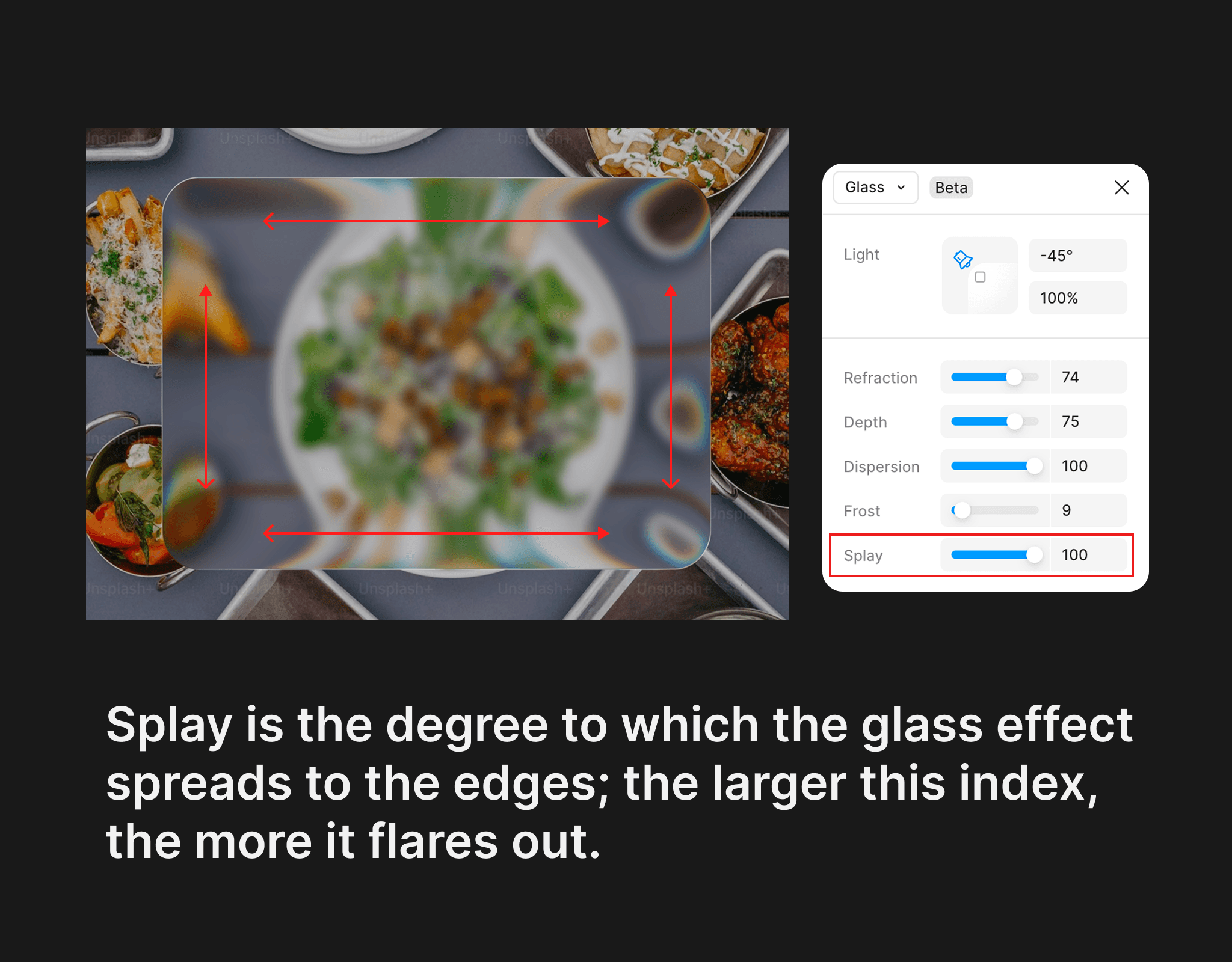
The "Splay" parameter determines the spread of the glass border to the sides; the larger this parameter, the more it spreads. As you can see, when I set "Splay" to "100", the plate of food spreads wide on both sides at the top and bottom edges.